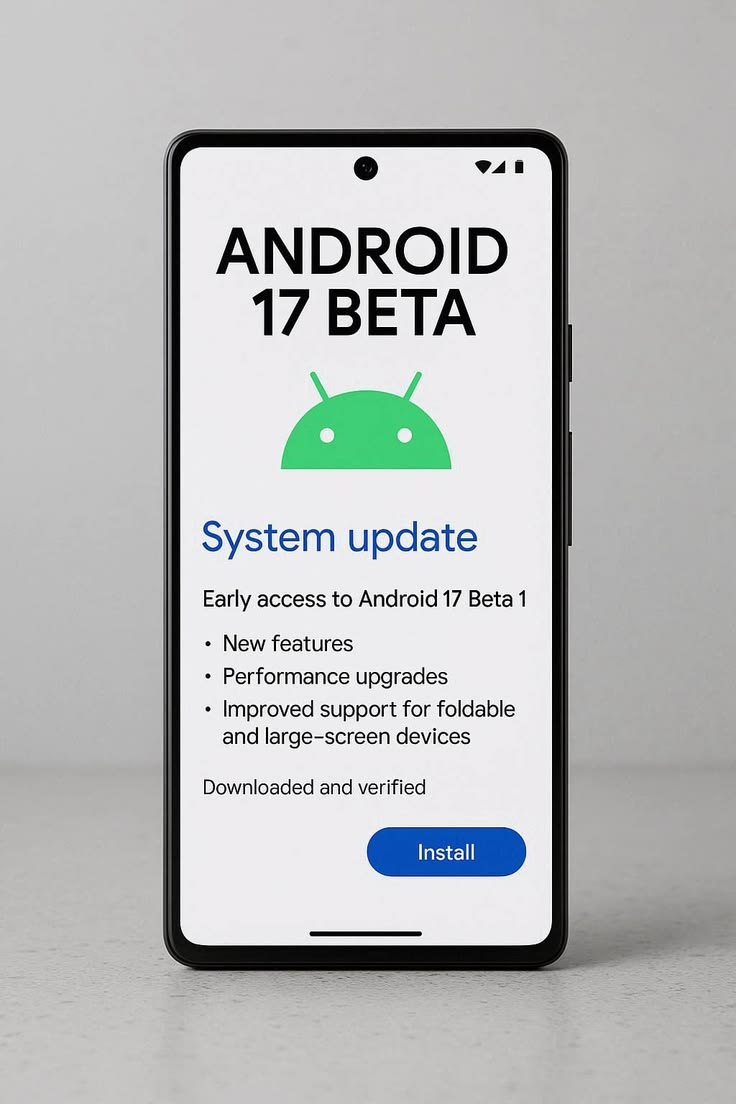

Keeping an Android smartphone updated is one of the easiest ways to improve security, performance, battery life, and app compatibility. Android software updates are released to fix technical problems, protect devices from security risks, and provide users with new features.
Many Android users delay updates because they are worried about losing data, reducing battery performance, or facing installation errors. In most cases, official updates are safe when installed correctly. Preparing the phone before installation can also reduce the risk of problems.
This Android Software Update guide explains how updates work, how to install them, and how to solve common update issues.
What Is an Android Software Update?
An Android software update is a package released by Google or a smartphone manufacturer to improve the device’s operating system. It may include security patches, bug fixes, new functions, design changes, and performance improvements.
Android updates are not always released directly by Google to every phone. Smartphone brands often customize Android for their own devices. For example, Samsung, Xiaomi, Oppo, Vivo, Realme, OnePlus, and other companies may use different interfaces and update schedules.
This is why two Android phones may receive the same major update at different times.
Android software updates commonly include:
- Security improvements
- System bug fixes
- Better battery management
- Improved camera performance
- New privacy controls
- Updated user-interface features
- Better app compatibility
- Wi-Fi and Bluetooth fixes
- Device stability improvements
Some updates are small security patches, while others are major Android version upgrades.
Why Android Software Updates Are Important
Security is one of the main reasons to install Android updates. Smartphones contain sensitive information such as photos, passwords, contact details, messages, payment applications, and personal documents.
Security updates fix weaknesses that could potentially be used by harmful software or online attackers. Using an outdated Android version for a long time may increase security risks.
Updates can also improve the overall performance of a smartphone. A new update may fix problems such as:
- Apps crashing unexpectedly
- The phone becoming slow
- Battery draining quickly
- Mobile data connection issues
- Wi-Fi disconnecting
- Bluetooth devices not connecting
- Camera errors
- Touchscreen response problems
Regular Android updates also help applications continue working properly. Some apps may stop supporting older Android versions over time.
Types of Android Software Updates
Android devices can receive different types of updates. Understanding them helps users know what is being installed.
Security Updates
Security updates protect smartphones against recently discovered system weaknesses. These updates are usually smaller than major Android upgrades.
They may not add visible features, but they are extremely important for protecting personal data and online accounts.
Major Android Version Updates
Major Android version updates introduce larger changes to the operating system. These updates may include a redesigned interface, new privacy options, improved notifications, better multitasking, and additional accessibility tools.
A major update normally requires more storage and takes longer to install.
System App Updates
Some Android services are updated through the Google Play Store. These may include Google Play Services, Android System WebView, and other important system components.
These updates can improve security and application performance without changing the complete Android version.
Manufacturer Software Updates
Smartphone companies add their own interfaces and features to Android. These customized systems may include Samsung One UI, Xiaomi HyperOS, Oppo ColorOS, Realme UI, Vivo Funtouch OS, and OnePlus OxygenOS.
Manufacturer updates may introduce new camera tools, themes, battery settings, and device-specific features.
How to Check for an Android Software Update
The update process can be slightly different depending on the smartphone brand. However, most Android devices follow a similar method.
To check for an update:
- Open the Settings application.
- Scroll down and select System or About Phone.
- Tap Software Update or System Update.
- Select Check for Updates.
- Download the update when it becomes available.
- Restart the device to complete installation.
On some smartphones, the software update option appears directly inside the main Settings menu.
The phone will display the update size, version details, security patch level, and installation instructions before downloading.
How to Prepare Your Phone Before Updating
Although most updates install automatically, proper preparation can prevent interruptions and data loss.
Back Up Important Data
Create a backup of important photos, videos, contacts, messages, and documents before installing a major Android update.
Data can be backed up using:
- A Google account
- Google Drive
- Google Photos
- A computer
- A memory card
- Manufacturer cloud services
Normal updates do not usually erase personal data, but having a backup is still a smart precaution.
Charge the Battery
Make sure the phone has enough battery before starting the update. It is safer to have at least 50 percent battery or keep the phone connected to a charger.
The device should not turn off while system files are being installed.
Connect to Wi-Fi
Android software updates can be large. Using a stable Wi-Fi connection can prevent interrupted downloads and save mobile data.
Avoid downloading a major update through weak or unstable internet.
Free Up Storage Space
The phone needs enough free storage to download and extract update files.
Delete unnecessary videos, duplicate photos, unused apps, and temporary files when storage is low.
How Long Does an Android Update Take?
The total installation time depends on the update size, phone model, storage speed, and internet connection.
A small security update may install within a few minutes. A major Android upgrade may take longer because it includes more files and system changes.
During installation, the phone may restart more than once. Users should not press buttons repeatedly or force the device to shut down.
After installation, the phone may temporarily become warm or slow while applications and system files are being optimized.
Why Is an Android Update Not Showing?
A software update may not appear immediately for every user.
Common reasons include:
- The update is being released gradually.
- The smartphone is no longer supported.
- The mobile network provider has delayed the update.
- The device region has a different release schedule.
- The phone does not have enough storage.
- The internet connection is unstable.
- The manufacturer is still testing the update.
Users should wait for the official update instead of downloading unknown installation files from unofficial websites.
Installing unofficial firmware can damage the phone, remove important features, or create security risks.
Common Android Software Update Problems
Sometimes an update may fail to download or install. Many common issues can be solved through basic troubleshooting.
Update Download Is Stuck
Check the Wi-Fi connection and restart the smartphone. Then return to the Software Update section and try again.
Also check whether enough storage space is available.
Installation Failed
An update may fail when the battery is low, storage is full, or downloaded files are incomplete.
Restart the device, charge the battery, free up storage, and attempt the installation again.
Phone Is Slow After Updating
A smartphone may perform background optimization after an update. This can temporarily use additional battery and memory.
Restart the phone and allow some time for applications to finish updating. Also check the Google Play Store for pending app updates.
Battery Drains Faster After Update
Temporary battery drain can happen while the system rebuilds files and optimizes applications.
Users can check the Battery section in Settings to identify apps consuming excessive power. Updating or reinstalling a problematic app may solve the issue.
Apps Are Crashing
Older app versions may not be fully compatible with a new Android update.
Open the Google Play Store and update all installed applications. Clearing an affected app’s cache can also help.
Should Automatic Android Updates Be Enabled?
Automatic updates are helpful for most smartphone users. They ensure that important security patches and system improvements are not missed.
Some phones allow users to download updates automatically over Wi-Fi while asking for permission before installation.
Users with limited storage or internet data may prefer to check updates manually. However, delaying security updates for a long time is not recommended.
Is It Safe to Update an Older Android Phone?
An update is generally safe when it is officially provided through the device settings. Smartphone manufacturers test updates before releasing them for compatible models.
However, older devices may not receive every new Android version. Hardware limitations, storage requirements, and support policies can affect update eligibility.
Users should avoid forcing a newer Android version onto an unsupported device unless they fully understand the technical risks. Unofficial installation methods can cause system instability and may remove warranty support.
Tips for a Smooth Android Update
A few simple steps can make the update process safer and easier:
- Back up important files.
- Use a stable Wi-Fi connection.
- Keep the phone connected to power.
- Maintain enough free storage.
- Read the official update details.
- Update installed apps afterward.
- Avoid unofficial firmware files.
- Restart the phone after installation.
These habits can reduce installation errors and improve the device’s performance after updating.
Conclusion
An Android software update is essential for keeping a smartphone secure, stable, and compatible with modern applications. Updates may include security patches, performance improvements, bug fixes, new features, and better battery management.
Users should regularly check for official updates, create a backup before major upgrades, connect to reliable Wi-Fi, and ensure that enough storage and battery power are available.
Although some updates may temporarily affect speed or battery usage, these issues often improve after the phone completes background optimization. By following the correct Android update process, users can protect their personal data and enjoy a smoother smartphone experience.